
Downloading Your Weekly Unit Materials
Completion requirements
Because Moodle units are archived at the end of each semester (see this announcement post for dates for each semester) we recommend that all students download their learning materials from Moodle each week, as you go. This will ensure that you don't forget to do this, in the excitement of finishing a semester!
To download individual documents (eg PDF notes and readings)...
- Click on the link to open the document (it should open in a new tab of your browser).
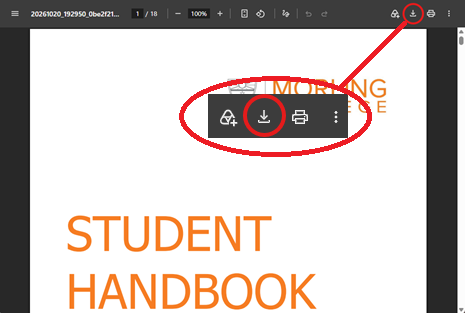 Click on the download option
  (usually on the right-hand end of the top toolbar of the document tab).
- Save to a folder (for that unit) on your computer.
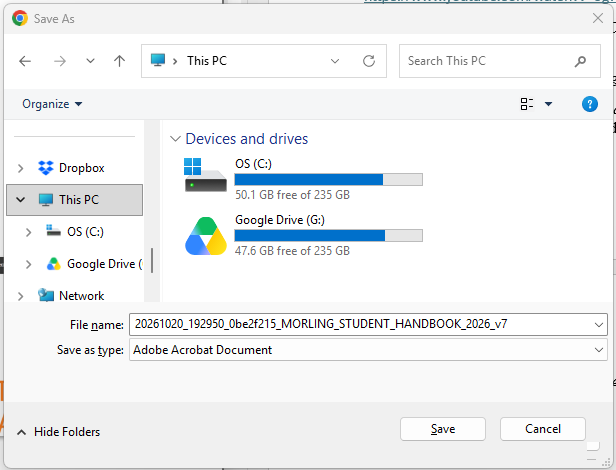
To download (or print) learning materials in book format
Most units' learning content is provided in book format. The benefit of this is that each section of the learning content is easily accessible via the Table of Contents in the right-hand block drawer of the moodle screen.
The entire book (or just one section if you prefer) can be printed or downloaded, and will include your responses to any activities that you have completed within that book.
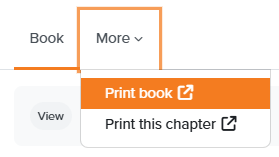
- Go to More in the Book menu (top left corner of the Moodle book).
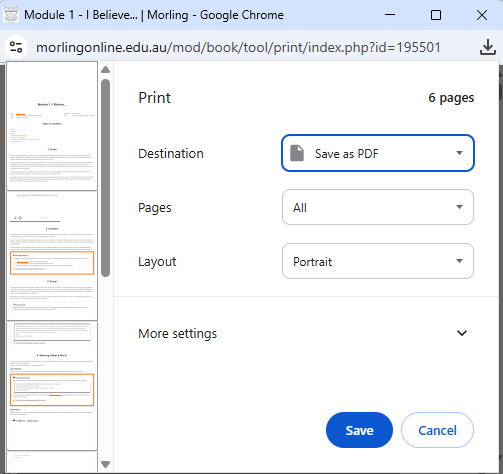
- Choose Print book (a new pop-up will appear, with a preview version of the Moodle book in it).
- Click on Print book in the pop-up window.
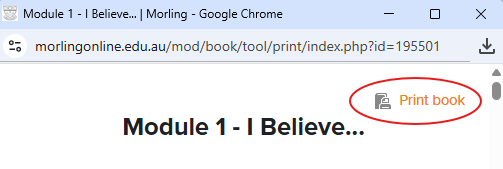
- In the Destination field, choose your printer (to print) or Save as PDF to save the file to your computer.
Last modified: Thursday, 22 October 2026, 7:16 PM